.gitignore
Before activating Git, it is necessary to prevent the saving and tracking of changes of unnecessary files. Most often, these are files used by the editor or files created by compiling, etc. We define files or entire directories that we don’t want to track in .gitignore. The .gitignore file is placed within the project folder.
This file is filled with the appropriate commands with the help of which Git knows which files it should not follow. The principle of marking files and folders that we don’t want to track in .gitignore is as follows:
- Enter the file extensions with a space that we do not want to follow, such as
.swo .swp
- Enter the folders we don’t want to track:
folder_name
In case there is a file inside the folder that still needs to be tracked, write:
!someFile.txt
- Enter the folder and its subfolders that we do not want to track:
folder_name/subfolder_name
View branches
- Let’s enter the folder and all its subfolders that we don’t want to track:
folder_name/*
- Let’s write all objects and archives that we want to ignore:
*.[oa]
There are a large number of .gitignore examples on the Internet, depending on the project in question (WordPress, Android…), and you can find an excellent site for finding an adequate one at the following link: toptal/.gitignore.
Unfollow
It is very important to create a .gitignore file before initiating Git, because if Git has already started monitoring a certain file, it will not stop monitoring it even if we later insert that unwanted file into .gitignore. Below are described the necessary actions to stop uploading a file.
a) Termination of tracking without physical deletion
If some non-essential files for the project have been committed by mistake, the changes of which we do not want to save, but we also do not want to physically delete them from the working directory, we need to order git to stop tracking them (i.e. to remove them from the repository) with the command:
|
|
git rm --cached naziv_fajla.ekstenzija |
The command to stop tracking a directory is:
|
|
git rm -r --cached imeDirektorijuma |
where -r tells Git to stop tracking all subdirectories and files within it.
After the command to stop tracking, the file is in the preparation space (index). In order to prevent the files on the next commit from entering the repository again, it is necessary to insert those files into the .gitignore file before the commit-ovj.
NOTE:
Please note that if the file name contains a space between words, it is necessary to put it in quotation marks, as in the following example:
git rm "neki naziv fajla sa razmacima.ekstenzija"
b) Termination of monitoring with physicalby deleting
If there is a need to remove the file from the repository and delete it from the working directory, use the command:
If it is a directory, we use the command:
|
|
git rm -r imeDirektorijuma |
where -r tells Git to stop tracking all subdirectories and files within it. After the command to delete files, it is also necessary to commit (without first sending to the index).
See more about this command on the official page
Local repository
When we want to activate Git ie. to start tracking changes in the project, we need to initiate the creation of a “working git repository” within the project folder, which is done as follows:
|
|
cd projektni_folder git init |
This command creates a new folder .git (so-called “repository”) within our project and it will contain the entire database of our project. From that moment Git monitors the project and takes snapshots of the state when we commit. If we want Git to no longer monitor our project, it is enough to delete this folder.
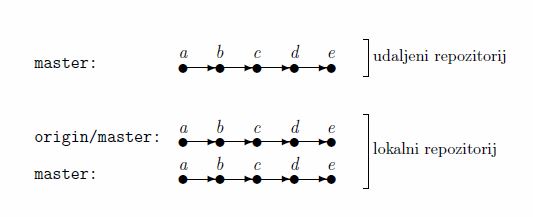
The local repository is in a specific relationship with the remote one because it is “aware” of the existence of the remote repository. Within the local repository there are always at least two branches (see picture):
- A branch named “origin/master” which is a local version (copy) of the remote repository. Our changes cannot be sent to this branch, but it serves to take changes (merges) from it, because it is practically an intermediary, i.e. an intermediate step for getting changes from a remote repository.
- The branch named “master” is our local branch directly linked for the project (where we make commits).
Read more