


Term and definition
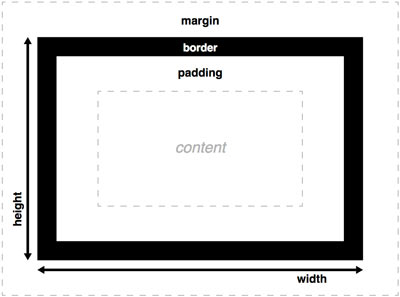
All HTML elements are boxes, including the span tag. A box as a concept in the front-end is different from the concept of a box in life.
Box dimensions according to W3C are obtained by addition
dimension of the following elements:
- box content (it has its own height and width)
- padding
- border
The margin does not enter the size of the box, it separates the boxes. If the width of the box is not explicitly defined, then the box occupies 100% of the parent element.
To play with the box model and get the final size you can visit the page.
Box properties
Box model has its properties:
- for box size: height, width, max-height, max-width, min-height, min-width
- margin and padding
- extra features: box-sizing, overflow, box-shadow, visibility
Border-box
If we want the box model to look more like a box from everyday life, use the CSS property: box-sizing: border-box
See the Pen Box Model Reset by Web Programming (@chos) on
CodePen.
Overflow
This box property deals with displaying the content if the content is larger than the container it is in. The default property value is visible, which allows content to be displayed across container boundaries. In the following example, the container is of fixed width and height
(green) and contains two elements that are larger than it, while its overflow property is set to the default value of visible.
See the Pen overflow1 by Web programming (@chos) on CodePen.
In the following example, the value of the property overflow has been changed to scroll. The container now only displays the content within its bounds, but a scroll bar has been added to allow viewing of the entire content. This property always shows the scroll while the property auto
only if there is a need.
See the Pen overflow2 by Web programming (@chos) on CodePen.
When the value of the property overflow is set to hidden only part of the content is visible as much as the container size allows.
Box-shadow
This property of the box creates a shadow, for the outer shadow it accepts four arguments, while for the inner shadow five arguments are needed (an inset argument is added at the beginning). The first argument defines how much the shadow is offset in relation to the box in the X-direction, while the second one
element
defines the same butin the Y-direction. The third argument defines the value of blur, while the fourth element defines by how many pixels the shadow is smaller or larger than the box. All argument values are in pixels.
It is possible to define multiple shadows on one element, simply by concatenating sets of arguments that are separated by commas.
See the Pen PGqzEy by Web programming (@chos) on CodePen.
A great box-shadow generator can be found here.
Visibility
This property can have one of three values:
- visibility: visible (default value)
- visibility: hidden (does not show the given element but keeps the place it would occupy if it were visible, which is the main difference compared to the CSS property “display: none”which does not occupy any area.
- visibility: collapse (used only with tables (to remove columns and types) as it does not occupy any area. If we apply the collapse property to another element that is not a table, then it behaves like the hidden property.)
Top/bottom margin specificity
The top margins of the box element have their “bugs” ie. in some special cases they do not behave as expected. The problem occurs when the margins of two elements (two adjacent or parent-child) touch.
Collapsing top/bottom margins of neighboring elements
If the margins of two adjacent elements touch, the margins do not add up, but the margins overlap, after which a larger margin is taken.
In this example, only the bottom margin of the top box is visible because it is the largest 30px, while the top margin of the bottom element of 15px is still there but has overlapped the larger one.
See the Pen Box model 4 by Web Programming (@chos) on CodePen.
Top/bottom margin collapse between parent and child
If the margins of the element and its parent “touch” ie. when the parent does not have a border or padding that would stand between the child’s margin and the parent’s margin, there will be a deletion of the top/bottom margin (eng. “collapsing margin”) between it and
parents. However, those margins have not completely disappeared, but have been moved to the next element, i.e. they become the top/bottom margins of the parent element. All the rules mentioned in the previous section (“Collapsing top/bottom margins of adjacent elements”) apply to these margins as well.
The following example shows that although the top/bottom margin is set to 30px, it is not applied between our element and its parent element, but between the parent element and its outer element.
See the Pen box5 by Web programming (@chos) on CodePen.
However, if the child’s and parent’s margins do not touch, i.e. ifthe parent has a border as in the following example, the top/bottom margin does not collapse:
See the Pen Box Model 3 by Web programming (@chos) on CodePen.
Overcoming the margin problem
Problems with top/bottom margins can be solved in several ways:
- by preventing the two top/bottom margins from touching by adding minimal padding or border (eg 1px)
- defining the overflow property other than the default value such as: overflow: auto or overflow: hidden
It is also known that collapsing top/bottom margin does NOT happen for elements with properties:
- float
- position: absolute
- display: inline-block