


What is android activity?
Android applications are a collection of tasks, where each task has its own functionality. These functionalities can be divided into four Android components:

Activity, as one of the ways with which android enables the functionality of the application, aims to enable interaction with the user. For this reason, every activity has a user interface. For interactivity with the user, the activity provides a window that houses the user interface. This window usually fills the entire screen of the device, but it can be smaller or float over other windows. Most often, one activity implements one screen.
In order for our class to represent an activity in the application, it must extend the “Activity” class. The most commonly used class is “AppCompatActivity”, which is the successor of the Activity class and covers new functionalities such as actionBar… This class comes with the appcompat-v7 library.
|
1 2 3 |
public class NekaAktivnost extends AppCompatActivity { // class content } |
The “Activity” class itself (AppCompatActivity) is a subclass of the Context class, which means that all activities have access to global information about the application environment.
If the application has several activities, one activity is always defined as main activity (eng. MainActivity). This main activity is the first screen that appears when the user starts the application, after that another activity can be started from the main activity. In this way, the activity serves as the entry point for the application’s interaction with the user. That activity can trigger another activity, then the main activity goes into a paused state while the secondary activity is active. When the secondary activity is finished, the main activity returns to the foreground and continues.
Basic life cycle methods
From the moment the activity is displayed on the screen to the moment it is hidden, the activity goes through a number of stages in its so-called “Life cycle” (eng.lifecycle).
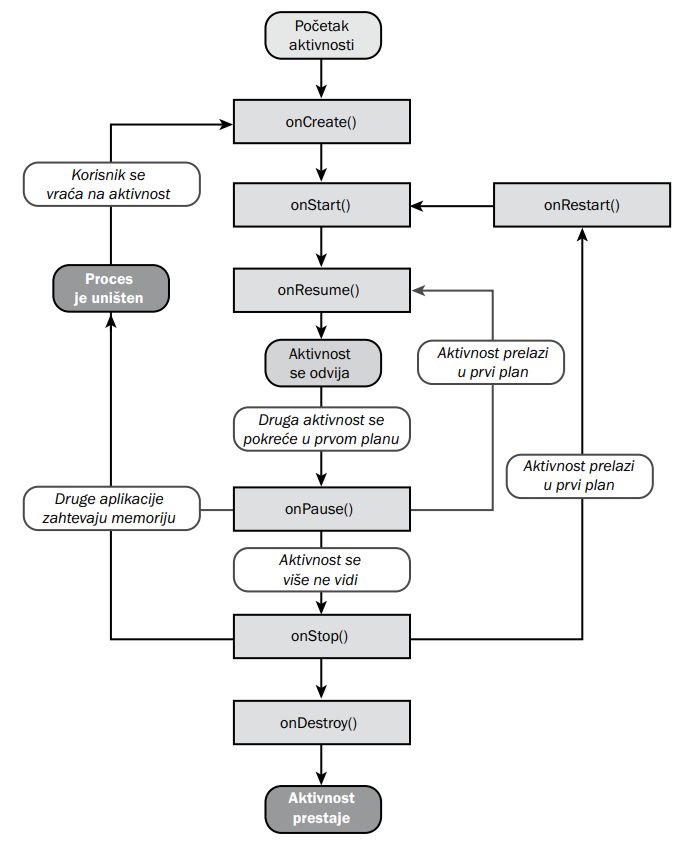
onCreate()
This is the first method that is run when the application starts. The application is not yet visible before the execution of this method, and it only becomes visible when the onCreate() method is executed.
|
1 2 3 4 5 |
@Override protected void onCreate(Bundle savedInstanceState) { super.onCreate(savedInstanceState); // Code goes here } |
NOTE:
NEVER write code in the body of this method that takes too long to execute (eg an infinite loop) because the UI of the application is only displayed after this method has finished.
The onCreate() method accepts a savedInstanceState parameter of type Bundle. The Bundle object allows us to collect different types of data in the form of key/value in one object. If the activity is created “from scratch” then this parameter is null, however if it is recreated (after onDestroy()), then this parameter has the value of the Bundle object used in the onSaveInstanceState() method.
In this method, everything that is important is executed before displaying the application, such as e.g. defining an eventListener or binding an activity to the appropriate layout defined in XML:
|
1 |
setContentView(R.layout.mojView) |
Example
|
1 2 3 4 5 6 7 |
public class NekaAktivnost extends AppCompatActivity { @Override protected void onCreate(Bundle savedInstanceState) { super.onCreate(savedInstanceState); setContentView(R.layout.activity_neka_aktivnost); } } |
onStart()
After the completion of the onCreate() method, the application’s UI becomes visible and the application’s interaction with the user is possible, so this method is triggered. If the application was already running and was stopped, this method is also started after the completion of the onRestart() method.
onPause()
This method is called when the application is paused but also before the application is completely stopped. If the application is only paused after this method, the onResume() method is called, while in the case of stopping the application after this method is finished, the onStop() method is called.
onResume()
When the application is first started, this method is run after the onStart() method, and later it is called after the onPause() method has finished each time the activity resumes.
onStop()
This method is triggered after the activity becomes invisible. The reason can be an action performed by the user/android by pushing ours from the foreground for some reason, most often due to some other application (eg we receive a call while our application is running). The application is not visible at that moment, but it is still running in the background.
onRestart()
This method is called on application restart before the activity becomes visible. This method is called after the onStop() method, and it can be concluded that this method is called every time the onStart() method is called, except at the first start of the application.
It should be noted that this method is NOT executed when the activity is first started, nor when the screen is rotated (the activity is destroyed and restarted).
onDestroy()
This method is called when the system decides to kill the application. It is preceded by the onStop() method.
NOTE:
In cooperation with the listed lifecycle methods, two more methods are very often used:
- onSaveInstanceState(Bundle outState)
- onRestoreInstanceState(Bundle savedInstanceState)
These two methods are used to save and reuse data after application termination. When the application stops, android calls the methodonSaveInstanceState() before the onStop() method. In this way, android allows to save the state of the application through it.
It should be noted that android does not call the onSaveInstanceState() method when the user explicitly closes the activity or when the application calls the finish() method.
|
1 2 3 4 5 6 7 8 9 |
@Override public void onSaveInstanceState(Bundle savedInstanceState) { // This is where variables are stored savedInstanceState.putInt(SOME_CONSTANT1, variableWhoseValueSaves1); savedInstanceState.putInt(NEKA_KONSTANTA2, variableWhoseValueSaves2); // The superclass must always be called super.onSaveInstanceState(savedInstanceState); } |
The onRestoreInstanceState() method is used to restore saved data, so it is executed after the onStart() method and before the onResume() method.
|
1 2 3 4 5 6 7 8 |
public void onRestoreInstanceState(Bundle savedInstanceState) { // It must always call the superclass super.onRestoreInstanceState(savedInstanceState); // Restore state members from saved instance variableWhoseValueSaves1 = savedInstanceState.getInt(SOME_CONSTANT1); variableWhoseValueSaves2 = savedInstanceState.getInt(NEKA_KONSTANTA2); } |
The onCreate() method is assigned the same Bundle object, so it can also be used to return data (it is used for this purpose when the application is destroyed and recreated).
Application of activity life cycle methods
When the application loses focus or becomes invisible, the user cannot interact with the application, but the application is still running in the background, therefore it is necessary to write a code with which we should stop all CPU-consuming operations, stop all audio or video playback as well as save the current values of some data (eg where the video playback stopped, the value of some calculation…). If it is a game, the advice is to automatically stop the game immediately after losing focus, because the user has lost the ability to control the game. Also, we should never automatically start the game when the focus returns, because the user might be unprepared (eg driving a race in a racing game), it is recommended to show a pause screen and thus allow the user to choose when to resume the game. Most of this required functionality is written in the mentioned methods.
Cases that can happen in the life of the application and for which we must be prepared are:
a) Loss and return of focus
Loss of focus (the application is visible!) most often happens when a system dialog is activated. Before losing focus, the onPause() method is called. If the application regains focus, the onResume() method will be executed.
b) The user pauses the application and then returns to it
An activity can be paused in several ways:
- when the user presses the Home button (the application will restart if the user selects the paused application again in the menu (by clicking the rectangle button) where all applications are temporarily paused)
- when the screen is turned off (the application will restart when the user turns on the screen)
In both cases, the activity is stopped, but not destroyed. The methods executed until then are: onPause(), onSaveInstanceState(), and onStop(). After the restart, the onRestart() method is executed, followed immediately by the onStart() method, onRestoreInstanceState() and finally the onResume()
method
c) The operating system destroys and restarts the application
The best example for this case is rotating the device. Android sees the rotation as a configuration change and prepares to kill the activity and then restart it. Before destruction, onStateInstanceState() is called, which is great for temporarily saving data, to be used later when restarting the activity with the onCreate() method, which also has a Bundle object.
|
1 2 3 4 5 6 7 8 9 |
@Override protected void onCreate(Bundle savedInstanceState) { super.onCreate(savedInstanceState); setContentView(R.layout.activity_main); if (savedInstanceState != null){ variableWhoseValueSaves = savedInstanceState.getString(KEY_KONSTANTE); // then do something with that variable } } |
d) The operating system destroys the application to free itresources
This happens if the application has not been used for a long time (paused), so the system is forced to destroy it to free up resources by closing cached processes. After the execution of the onStop() method, the application becomes invisible, and before its destruction, android first calls the onSavaInstanceState() method. Application destruction happens after the onDestroy().
method
EXPLANATION:
Android “kills” processes when it needs memory according to a certain order that depends on the importance of the process (“importance hierarchy”):
- cached process
- service
- visible process but without focus (visible process)
- active process (foreground process)
It should be emphasized that in case of restarting a new instance of the application, this application has access to all saved data through the onSaveInstanceState() method, so as in the previous example, we can pick them up from the Bundle object in the onCreate() method.
e) The user destroys the application or the application terminates itself
This case can happen:
- when the user presses the back
- when an activity initiates its own destruction by calling the finish()
system button
method
The procedure starts with the methods: onPause(), then onStop() when the application becomes invisible, and then the onDestroy() method. It should be emphasized that in both cases the data is not saved (the onSaveInstanceState() method is not called), and the application is started from “zero” with default data when the application is restarted.
NOTE:
When a user switches from one activity to another and then back to the initial one, multiple instances of the same activity can be launched on the device. To avoid this, the programmer needs to define the behavior of the activity. This is done within the AndroidManifest.xml file. In order for only one instance of the activity to be launched on the device, it is necessary in the activity element activity that contains (MAIN and LAUNCHER):
|
1 2 3 4 5 6 |
<activity android:name=".MainActivity"> <intent-filter> <action android:name="android.intent.action.MAIN" /> <category android:name="android.intent.category.LAUNCHER" /> </intent-filter> </activity> |
add i:
|
1 |
android:launchMode="singleInstance" |
so that the final one looks like this:
|
1 2 3 4 5 6 |
<activity android:name=".MainActivity" android:launchMode="singleInstance"> <intent-filter> <action android:name="android.intent.action.MAIN" /> <category android:name="android.intent.category.LAUNCHER" /> </intent-filter> </activity> |