


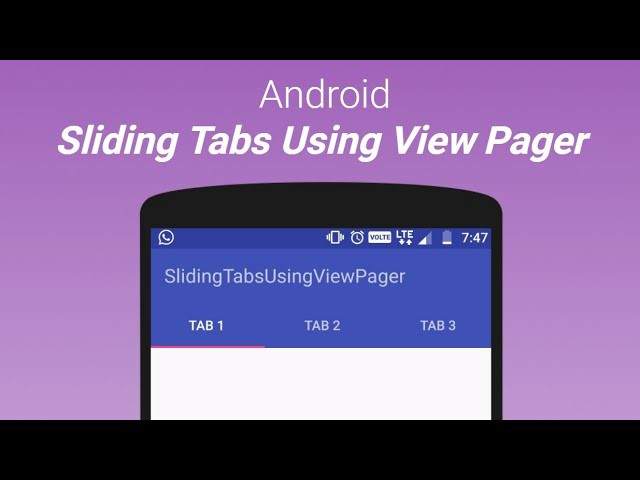
What is ViewPager?
ViewPager is a Layout Manager that allows the user to move through pages of data with movements to the left or right, while when changing pages, a built-in animation is executed. Most often, those pages with data are fragments, although they can be something else, for example. images that slide…
ViewPager is filled with data using its so-called adapter. PagerAdapter. If we use fragments, specialized adapters are used for them:
- FragmentPagerAdapter (caches fragments and is used for a smaller number of fragments, usually in conjunction with tabs)
- FragmentStatePagerAdapter (used with more fragments)
ViewPager is inserted into the layout as a container in which all pages will be displayed.
|
1 2 3 4 5 6 7 8 |
<android.support.v4.view.ViewPager android:id="@+id/vpPagerContainer" android:layout_width="match_parent" android:layout_height="0dp" app:layout_constraintBottom_toBottomOf="parent" app:layout_constraintEnd_toEndOf="parent" app:layout_constraintStart_toStartOf="parent" app:layout_constraintTop_toBottomOf="@+id/tabs" /> |
TabLayout
ViewPager is most often integrated into the layout together with TabLayout, which represents navigation.
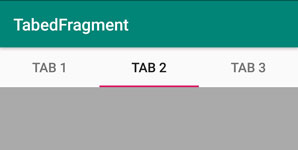
Before inserting the TabLayout, it is necessary to add a new dependecies “design”:
implementation 'com.android.support:design:28.0.0'
Only after inserting the dependencies can we add a new widget TabLayout with TabItems:
|
1 2 3 4 5 6 7 8 9 10 11 12 13 14 15 16 17 18 19 20 21 22 23 24 25 26 27 28 |
<android.support.design.widget.TabLayout android:id="@+id/tabs" android:layout_width="0dp" android:layout_height="wrap_content" app:layout_constraintEnd_toEndOf="parent" app:layout_constraintHorizontal_bias="0.0" app:layout_constraintStart_toStartOf="parent" app:layout_constraintTop_toTopOf="parent"> <android.support.design.widget.TabItem android:id="@+id/tabItem" android:layout_width="wrap_content" android:layout_height="wrap_content" android:text="TAB 1" /> <android.support.design.widget.TabItem android:id="@+id/tabItem2" android:layout_width="wrap_content" android:layout_height="wrap_content" android:text="TAB 2" /> <android.support.design.widget.TabItem android:id="@+id/tabItem3" android:layout_width="wrap_content" android:layout_height="wrap_content" android:text="TAB 3" /> </android.support.design.widget.TabLayout> |
Using PagerAdapter
The
PagerAdapter is used to populate the ViewPager container with the appropriate pages. In this article, pages will be represented by fragments, and first of all it is necessary to create three different fragments (FragmentA, FragmentB, FragmentC).
a) Creating an adapter class
When we create our custom adapter, we need to extend our class either with the PagerAdapter class or with one of the already mentioned classes: FragmentPagerAdapter or FragmentStatePagerAdapter which are used to work with fragments.
MyViewPagerAdapter.java
Since we have a small number of fragments in this example, we will use a class that caches fragments (fast but good only with a small number of fragments):
|
1 |
public class MojViewPagerAdapter extends FragmentPagerAdapter { } |
As soon as we extend a class AndroidStudio requires that a constructor be generated and two methods be implemented:
|
1 2 3 4 5 6 7 8 9 10 11 12 13 |
public class MojViewPagerAdapter extends FragmentPagerAdapter { public MojViewPagerAdapter(FragmentManager fm) { super(fm); } @Override public Fragment getItem(int i) { return null; } @Override public int getCount() { return 0; } } |
The method getItem(int position) returns the corresponding fragment depending on the position (ie an int parameter representing the position of the fragment):
|
1 2 3 4 5 6 7 8 9 10 11 12 13 14 15 16 |
@Override public Fragment getItem(int position) { Fragment fragment = null; switch (position) { case 0: fragment = new FragmentA(); break; case 1: fragment = new FragmentB(); break; case 2: fragment = new FragmentC(); break; } return fragment; } |
The getCount() method is designed to return the total number of pages to be displayed:
|
1 2 3 4 |
@Override public int getCount() { return 3; } |
b) Instantiating the adapter in the activity
Once we have created the Adapter class, we need to create its instance within the activity. A new instance is created using a constructor function that is passed an instance of frameManager:
Activity
|
1 |
mojViewPagerAdapter = new MojViewPagerAdapter(getSupportFragmentManager()); |
c) Connecting the adapter and the ViewPager container
Once we target the ViewPager then we can simply bind it to the adapter using the setAdapter() method:
Activity
|
1 2 |
pagerContainer = findViewById(R.id.vpPagerContainer); pagerContainer.setAdapter(mojViewPagerAdapter); |
d) Synchronizing ViewPager and TabLayout
It is already nowViewPagerAdapter populates ViewPager with fragments, so we can slide fragments with simple “swipe” movements left or right. However, although the fragments are successfully changed, no changes are made to the TabLayout. It is necessary to connect the swipe event with the change in Tablayout and vice versa. For the interaction between these two views, listeners and so-called listener pattern (you can see more about listener pattern here).
ViewPager listener
ViewPager has an interface “ViewPager.OnPageChangeListener” whose callback methods (onPageScrollStateChanged, onPageScrolled and onPageSelected) are called when a page change occurs by scrolling in ViewPager. In order for the listener to do its job, we need to set the event listener, which is done with the addOnPageChangeListener() setter method. This method is called by an object that implements this interface, which is any ViewPager.
|
1 |
ViewPager.addOnPageChangeListener(listeningObject) |
The object that is interested in becoming a page change listener in the ViewPager is actually a TabLayout object. For this role in android there is a specific class that implements all callback methods and thus synchronizes the TabLayout after the page change in the ViewPager named “TabLayout.TabLayoutOnPageChangeListener”.
This class accepts TabLayout as a parameter in the constructor, so we will use it to create “on the fly” an anonymous object :
|
1 |
mViewPager.addOnPageChangeListener(new TabLayout.TabLayoutOnPageChangeListener(tabLayout)); |
TabLayout listener
TabLayout has an interface “TabLayout.OnTabSelectedListener” whose callback methods ( onTabSelected(), onTabReselected(), onTabUnselected()) are called when there is a change in the tab selection.
In order for the listener pattern to do its job, we need to set the listener for these events, and this is done with the setter method addOnTabSelectedListener(). This method is called by an object that implements this interface, which is any tabLayout.
|
1 |
tabLayout.addOnTabSelectedListener(listeningObject); |
The object that is interested in becoming a tab change listener is actually a ViewPager object. For this role in android there is a specific class that implements all callback methods and thus synchronizes the ViewPager after changing tabs called “TabLayout.OnTabSelectedListener”.
This class accepts a ViewPager as a parameter in the constructor, so we’ll use it to create “on the fly” an anonymous object :
|
1 |
mTabLayout.addOnTabSelectedListener(new TabLayout.ViewPagerOnTabSelectedListener(mViewPager)); |
View full code
|
1 2 3 4 5 6 7 8 9 10 11 12 13 14 15 16 17 18 19 20 21 22 |
public class MainActivity extends AppCompatActivity { MojViewPagerAdapter mojViewPagerAdapter; ViewPager pagerContainer; TabLayout mojTabLayout; @Override protected void onCreate(Bundle savedInstanceState) { super.onCreate(savedInstanceState); setContentView(R.layout.activity_main); pagerContainer = findViewById(R.id.vpPagerContainer); mojTabLayout = findViewById(R.id.tabs); //adapter mojViewPagerAdapter = new MojViewPagerAdapter(getSupportFragmentManager()); pagerContainer.setAdapter(mojViewPagerAdapter); //Listeneri pagerContainer.addOnPageChangeListener(new TabLayout.TabLayoutOnPageChangeListener(mojTabLayout)); mojTabLayout.addOnTabSelectedListener(new TabLayout.ViewPagerOnTabSelectedListener(pagerContainer)); } } |
|
1 2 3 4 5 6 7 8 9 10 11 12 13 14 15 16 17 18 19 20 21 22 23 24 25 26 27 28 29 30 |
public class MojViewPagerAdapter extends FragmentPagerAdapter { private static int NUM_ITEMS = 3; public MojViewPagerAdapter(FragmentManager fm) { super(fm); } @Override public Fragment getItem(int position) { Fragment fragment = null; switch (position) { case 0: fragment = new FragmentA(); break; case 1: fragment = new FragmentB(); break; case 2: fragment = new FragmentC(); break; } return fragment; } @Override public int getCount() { return NUM_ITEMS; } } |
|
1 2 3 4 5 6 7 8 9 10 11 12 13 14 15 16 17 18 19 20 21 22 23 24 25 26 27 28 29 30 31 32 33 34 35 36 37 38 39 40 41 42 43 44 45 46 47 48 |
<?xml version="1.0" encoding="utf-8"?> <android.support.constraint.ConstraintLayout xmlns:android="http://schemas.android.com/apk/res/android" xmlns:app="http://schemas.android.com/apk/res-auto" xmlns:tools="http://schemas.android.com/tools" android:layout_width="match_parent" android:layout_height="match_parent" tools:context=".MainActivity"> <android.support.design.widget.TabLayout android:id="@+id/tabs" android:layout_width="0dp" android:layout_height="wrap_content" app:layout_constraintEnd_toEndOf="parent" app:layout_constraintHorizontal_bias="0.0" app:layout_constraintStart_toStartOf="parent" app:layout_constraintTop_toTopOf="parent"> <android.support.design.widget.TabItem android:id="@+id/tabItem" android:layout_width="wrap_content" android:layout_height="wrap_content" android:text="TAB 1" /> <android.support.design.widget.TabItem android:id="@+id/tabItem2" android:layout_width="wrap_content" android:layout_height="wrap_content" android:text="TAB 2" /> <android.support.design.widget.TabItem android:id="@+id/tabItem3" android:layout_width="wrap_content" android:layout_height="wrap_content" android:text="TAB 3" /> </android.support.design.widget.TabLayout> <android.support.v4.view.ViewPager android:id="@+id/vpPagerContainer" android:layout_width="match_parent" android:layout_height="0dp" android:background="@android:color/darker_gray" app:layout_constraintBottom_toBottomOf="parent" app:layout_constraintEnd_toEndOf="parent" app:layout_constraintStart_toStartOf="parent" app:layout_constraintTop_toBottomOf="@+id/tabs" /> </android.support.constraint.ConstraintLayout> |
NOTE:
For quickintegration of TabLayout and ViewPager we can use the already provided “Tabbed Activity” with built-in navigation (Actions bar Tabs with ViewPager).
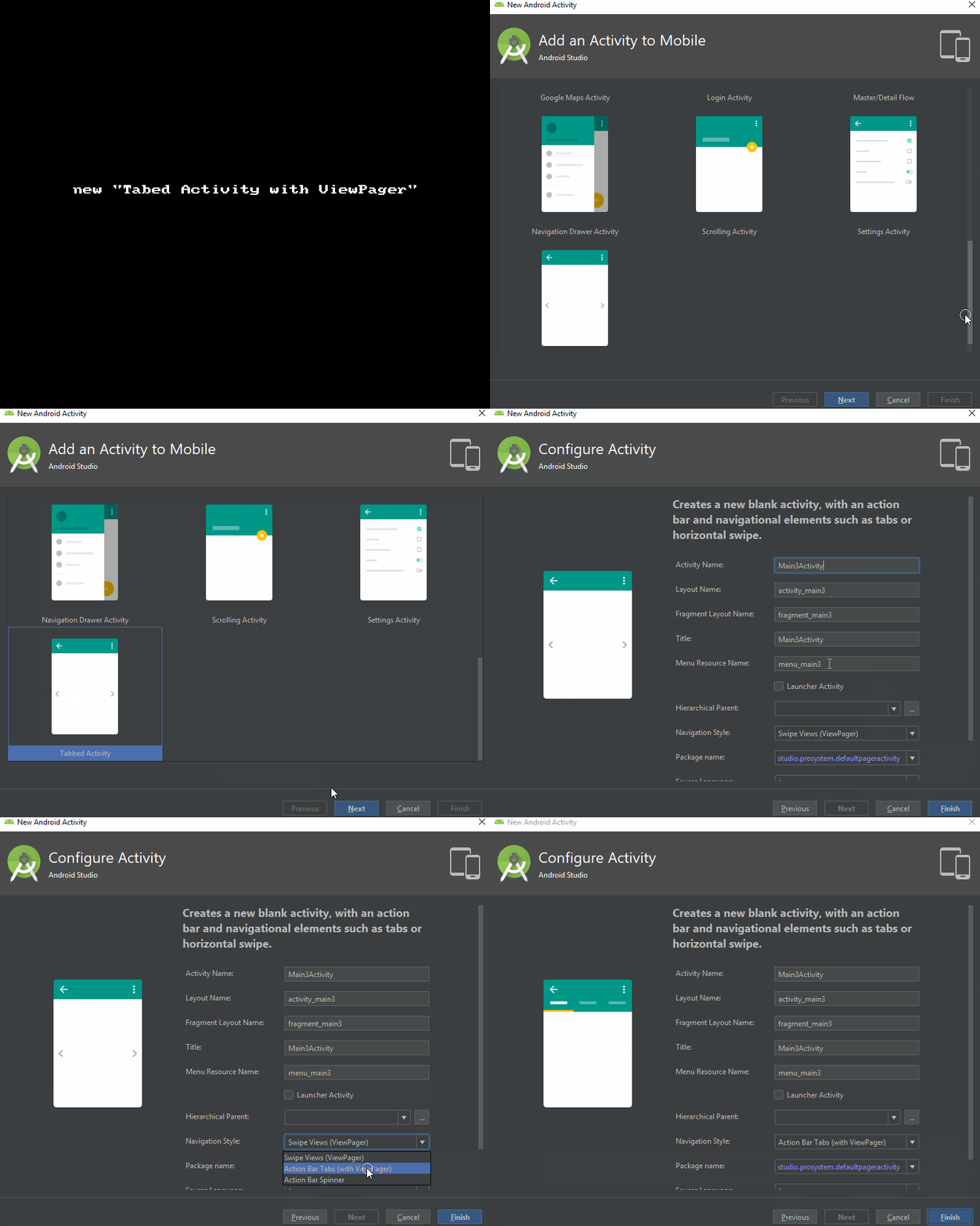
With this activity, most of the work comes already done, so with a few minor changes, everything can be prepared very quickly.
First of all, it is necessary to create a couple of fragment layouts (eg fragment_a.xml, fragment_b.xml, fragment_c.xml) and adjust the getItem() method:
|
1 2 3 4 5 6 7 8 9 10 11 12 13 14 15 16 17 |
@Override public Fragment getItem(int position) { Fragment fragment = null; switch (position) { case 0: fragment = new FragmentA(); break; case 1: fragment = new FragmentB(); break; case 2: fragment = new FragmentC(); break; } return fragment; } |
The part we can safely delete is attached to a temporary placeholder fragment :
|
1 2 3 4 5 6 7 8 9 10 11 12 13 14 15 16 17 18 19 20 21 22 23 |
public static class PlaceholderFragment extends Fragment { private static final String ARG_SECTION_NUMBER = "section_number"; public PlaceholderFragment() { } public static PlaceholderFragment newInstance(int sectionNumber) { PlaceholderFragment fragment = new PlaceholderFragment(); Bundle args = new Bundle(); args.putInt(ARG_SECTION_NUMBER, sectionNumber); fragment.setArguments(args); return fragment; } @Override public View onCreateView(LayoutInflater inflater, ViewGroup container, Bundle savedInstanceState) { View rootView = inflater.inflate(R.layout.fragment_main, container, false); TextView textView = (TextView) rootView.findViewById(R.id.section_label); textView.setText(getString(R.string.section_format, getArguments().getInt(ARG_SECTION_NUMBER))); return rootView; } } |
If we don’t need FloatingActionButton then we can delete its part of the code:
|
1 2 3 4 5 6 7 8 |
FloatingActionButton fab = (FloatingActionButton) findViewById(R.id.fab); fab.setOnClickListener(new View.OnClickListener() { @Override public void onClick(View view) { Snackbar.make(view, "Replace with your own action", Snackbar.LENGTH_LONG) .setAction("Action", null).show(); } }); |
If we don’t need “options menu” then we can delete the part related to it:
|
1 2 3 4 5 6 7 8 9 10 11 12 13 14 15 16 17 18 19 20 21 |
@Override public boolean onCreateOptionsMenu(Menu menu) { // Inflate the menu; this adds items to the action bar if it is present. getMenuInflater().inflate(R.menu.menu_main, menu); return true; } @Override public boolean onOptionsItemSelected(MenuItem item) { // Handle action bar item clicks here. The action bar will // automatically handle clicks on the Home/Up button, so long // as you specify a parent activity in AndroidManifest.xml. int id = item.getItemId(); //noinspection SimplifiableIfStatement if (id == R.id.action_settings) { return true; } return super.onOptionsItemSelected(item); } |
You can view the entire code of the “refined” activity here.
Activity
|
1 2 3 4 5 6 7 8 9 10 11 12 13 14 15 16 17 18 19 20 21 22 23 24 25 26 27 28 29 30 31 32 33 34 35 36 37 38 39 40 41 42 43 44 45 46 47 48 49 50 51 52 53 54 55 56 |
public class MainActivity extends AppCompatActivity { private SectionsPagerAdapter mSectionsPagerAdapter; private ViewPager mViewPager; @Override protected void onCreate(Bundle savedInstanceState) { super.onCreate(savedInstanceState); setContentView(R.layout.activity_main); Toolbar toolbar = findViewById(R.id.toolbar); setSupportActionBar(toolbar); TabLayout tabLayout = findViewById(R.id.tabs); mViewPager = findViewById(R.id.container); // Create the adapter that will return a fragment for each of the three primary sections of the activity. mSectionsPagerAdapter = new SectionsPagerAdapter(getSupportFragmentManager()); // Set up the ViewPager with the sections adapter. mViewPager.setAdapter(mSectionsPagerAdapter); // Listeners tabLayout.addOnTabSelectedListener(new TabLayout.ViewPagerOnTabSelectedListener(mViewPager)); mViewPager.addOnPageChangeListener(new TabLayout.TabLayoutOnPageChangeListener(tabLayout)); } // PagerAdapter public class SectionsPagerAdapter extends FragmentPagerAdapter { public SectionsPagerAdapter(FragmentManager fm) { super(fm); } @Override public Fragment getItem(int position) { Fragment fragment = null; switch (position) { case 0: fragment = new FragmentA(); break; case 1: fragment = new FragmentB(); break; case 2: fragment = new FragmentC(); break; } return fragment; } @Override public int getCount() { return 3; } } } |