


Introduction
PHP Storm is one of the best IDEs (eng. Integrated development environment) that provides a large number of work conveniences:
- Code Completion
- Refractoring code
- Integration version control (Git)
- Integration of Command Prompt
- Integration of Sass compiler and Typscript transpiler
- WordPress integration
- Debugging…
Most frequently used shortcuts
Shortcuts for working with code
- marked part
- the entire line where the cursor is
Search
The place where we want the cursor to be after activating the aberration is marked with “$END$”
Comments
Refractoring
DocumentationPHP
You can see all the shortcuts here and a great article on using shortcuts is at sitepoint.
Linux terminal integration
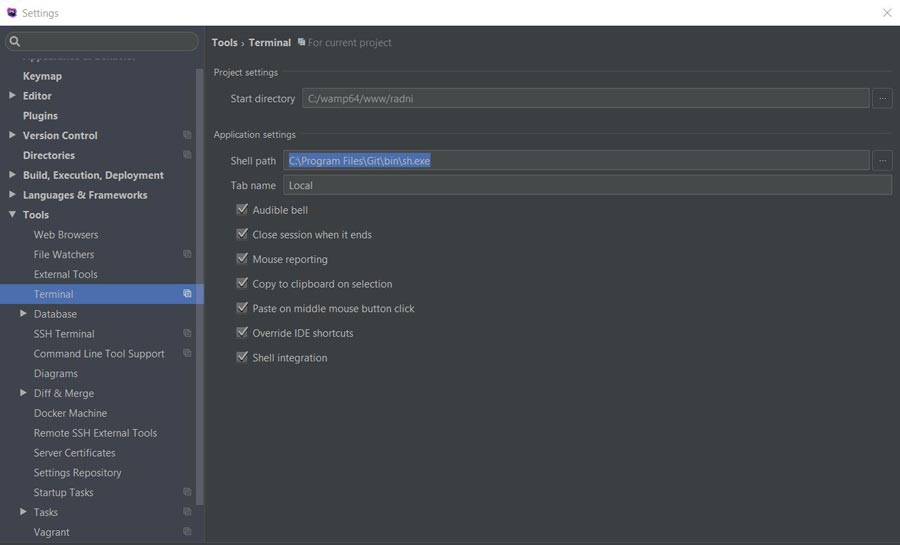
If we want to install a linux terminal instead of Windows’ default CMD, it is first necessary to have a linux terminal installed. The good thing is that the linux terminal comes with the installation of git, so it is enough just to change the path from the default cmd.exe to C:Program FilesGitbinsh.exe in the settings part related to the PhpStorm terminal, in the place Shell path
Sass integration
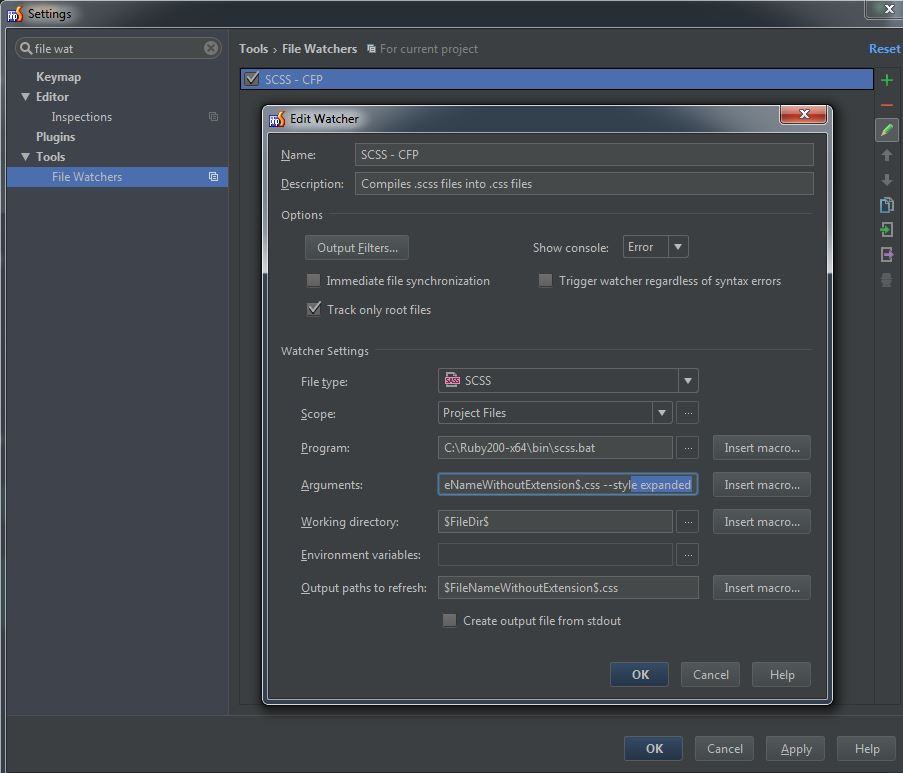
To be able to use the SASS compiler within the PhpStorm IDE, Sass must be installed first. To install Sass, see the article “Installing Web Development Tools”. After that, we create a new File Watcher that we adapt to our needs.
To change the location where the default css file will be placed, it is necessary to change the path to the desired folder in the place of the argument.
Argument
–no-cache –update $FileName$: ../css/$FileNameWithoutExtension$.css –style expanded
In the new path, we use the extension –style expanded for development, while for production we change the last part of the argument to:
–compressed
It is also necessary to change the part where “Output path to refresh” is mentioned, because it defines where the corresponding .map file is located, which allows the browser to show in the inspector on which line a CSS property is defined, but within the .scss file.
Output path to refresh:
$FileNameWithoutExtension$.css:../css/$FileNameWithoutExtension$.css.map
You can see more about this within PhpStorm here
Typescript integration
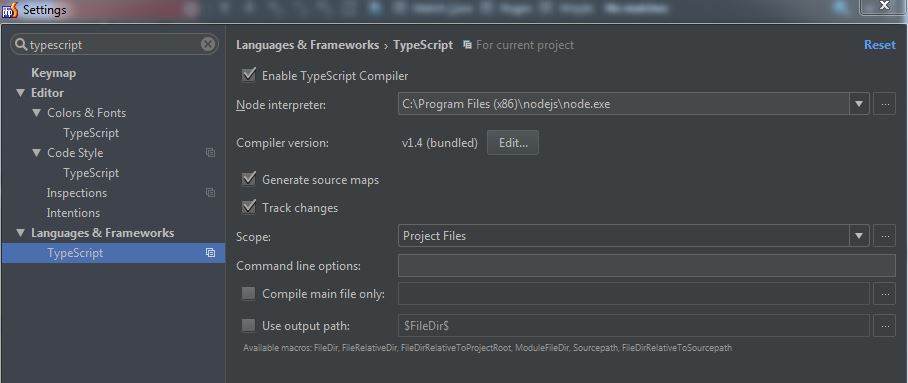
After installing typescript which is explained in the article
With the integration of Typescript in PHPStorm we get:
- Code Completion
- Error and syntax highlighting code
- Code Formatting
- Generation of the so-called JavaScript code. transpilation
Typescript integration is activated by checking the “Enable Typscript Compajler” option in the settings/Language&Framework/Typescript section.
Creating a new “File Watcher”
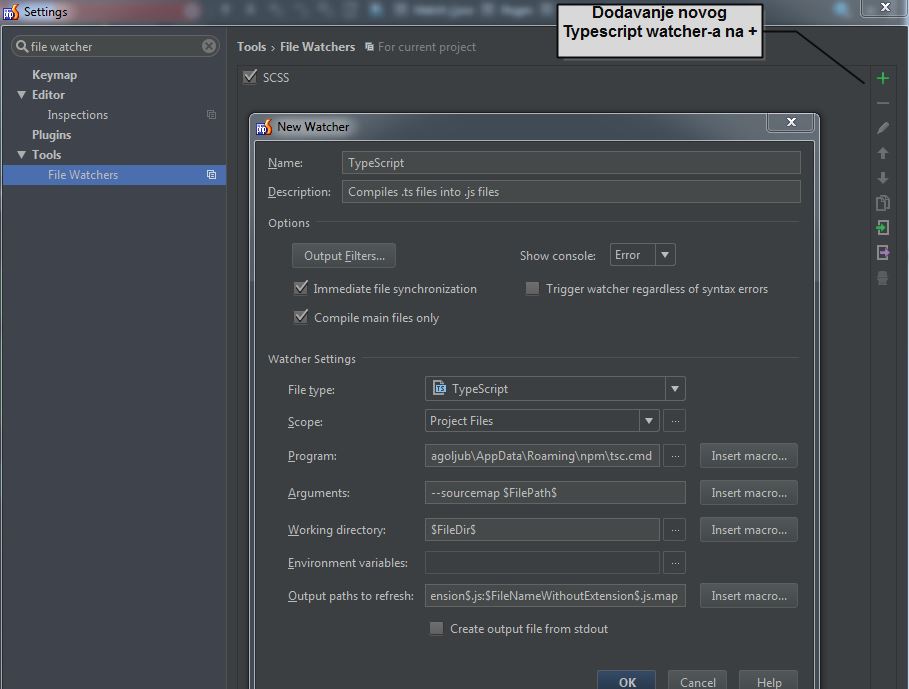
Adding a new File Watcher is obtained by clicking the + (plus) button, after which a window appears in which the settings are made. If during compilation an error of the type: error TS1056: Accessors are only available when targeting ECMAScript 5 and higher.
The problem is solved by adding the code –target es5 in place of arguments inside the FileWatcher dialog.
WordPress integration
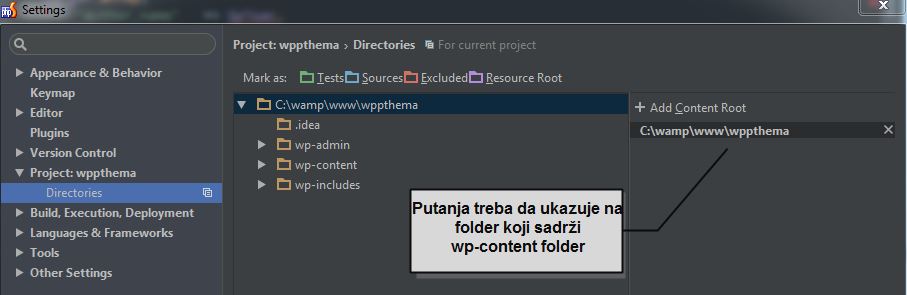
WordPress integration in PHPStorm has been active since version 8.0 of PHPStorm. It is necessary to activate wordpress within PHPStorm for each project. This is done in the menu settings/Wordpress and check Enable WordPress integration
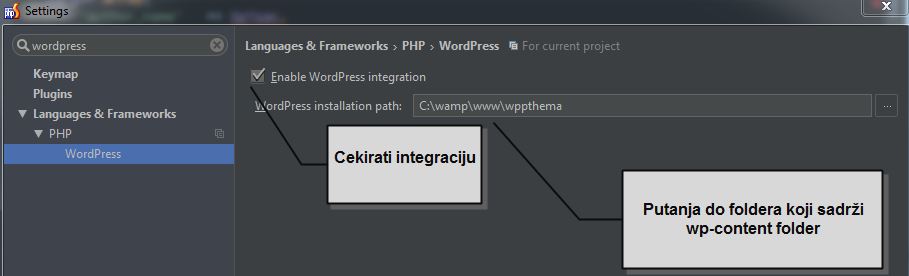
When WordPress installation path is selected, the wordpress project folder is selected which contains:
- wp-includes
- wp-content
- wp-admin
You should check if the path is set correctly in settings/project/Directories as in the picture:
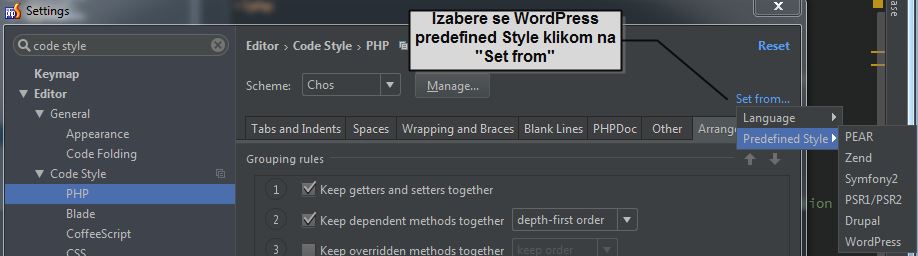
Adapting the code style according to WordPress recommendations is done by selecting Set from… and then the predefined WordPress style in Code Style in the PHP section.
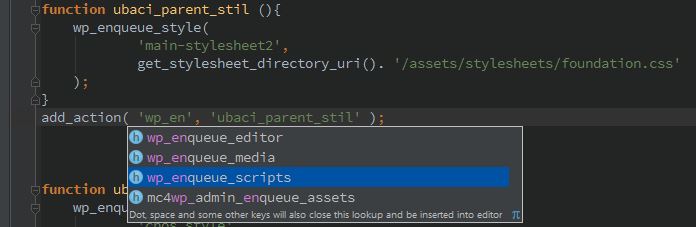
What does PHPStorm offer us in working with WordPress?
- WordPress offers us help in completing parameters when hanging on existing hooks as in the following image:
- WordPress takes us to the place where the hook is installed, if we click on the icon “h”
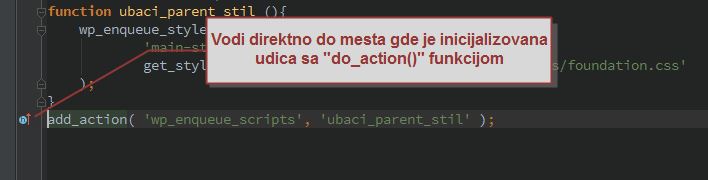
- If we hold Ctrl and click on the second hook registration parameter (the name of the function we are hooking) it will take us to where the function was created. The same is achieved if we mark the parameter and do the shortcut Ctrl + B.
- If wordpress is integrated in PHP Storm, then using the standard search symbol shortcut Ctrl+Shift+alt+N we can also search all wordpress functions and hooks.
Popular pluginsfor PhpStorm
There are a large number of plugins written to complement the functionality of PhpStorm, you can view them in the repository of the official site. Plugins are installed through PhpStorm’s interface where they can also be selected and searched. In the next part, I will list the popular plugins that I use.
Emmett
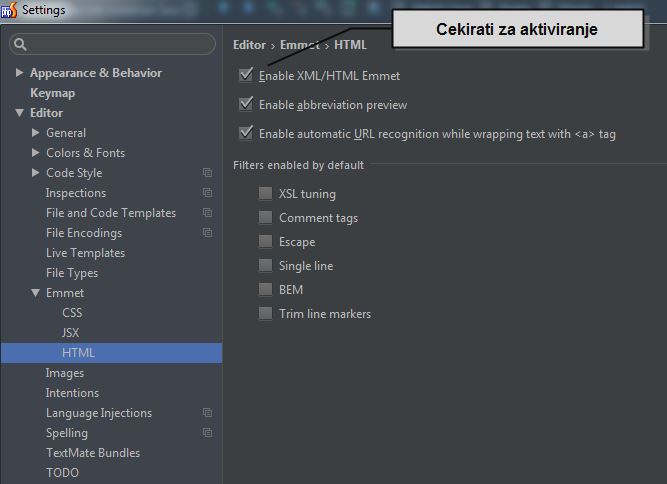
In order to activate emmet” you need:
- in CSS, check the box “Enable CSS Emmet”, as well as the option “Auto insert CSS vendor prefixes”
- in JavaScript, check Enable JSX Emmet
- in HTML, check “Enable XML Emmet”, as well as the option “Enable automatic URL recognition while wrapping text with
You can see more about this plugin in the article.
AceJump
It is used for simple and intuitive switching of the cursor on the page using only the keyboard. Shortcut
Browse word at caret
As its name suggests, this plugin moves the cursor to the first next word that is the same as the current word. Since the default rule shortcut is a problem for me, the next shortcut is custom:
Scratch
This plugin allows opening a temporary text file for making some annotations that will not be saved as part of the project.
LiveEdit
This plugin is used for live browser reload. It is activated by turning on the debug option over the selected file.
Tips and tricks
Disabling the spell inspector
When working with Serbian text, it is necessary to remove the effects created by the spelling checker. There are two possibilities:
- The first version is to turn it off completely, but it has to be done again for each project, as explained in the following text;
There is no “global” setting for existing projects — it needs to be done for each project individually (SpellChecker is an inspection and Inspections are configured on a per-project level). You need to disable whole group at Settings | Inspections | Spelling. You can configure it to be disabled by default for any future new projects:File /Default Settings / Inspections / Spelling
- The second variant is better because it only turns off the effects, but when the code inspector is started manually the errors will be visible. Instructions for turning off the effect are:
You could leave the Spell Checking inspection enabled and just remove the visual effect in the editor by going to Settings | Colors & Fonts | General | Typo and unchecking Effect.
This way it will not highlight the typos in the editor but when you manually run the code inspector the typos are listed.
Snippets ie. Live Template
Within PhpStorm, there is an excellent option for speeding up code writing by inserting predefined code snippets. There is a possibility to enter prepared snippets related to a specific language or framework through the plugin.
Creating a new snippet
First we need to create a keyboard shortcut for creating new snippets so-called. “Save With Live Template” (my shortcut is “CTRL + ALT + =”).
To create a new snippets, we need to mark the part of the code that we want to save as a new live snippets. Then we call the previously created shortcut (“CTRL + ALT + =”), after which a new window opens in which data is entered. In place of abbreviation, put the text for the call of the snippet, and in description the description of the snippet. Setting in which programming languages our snippet will be active is edited at the bottom, in the “Applicable in” section.
If we want the cursor to be in a certain place after the activation of aberration, then insert $END$ in the desired place as in the following example:
<strong>$END$</strong>
Snippet call
The snippet is called by typing the previously defined call text, after which it is activated with the provided action for activating the snippet (by default it is “Tab“).
If we want to view the list of defined snippets, use the shortcut CTRL+J.
View of used CSS styles
Right click on the tag we want to preview the style. Then in the menu we select, “Show Applied Styles for Tag”, after which a window with all applied CSS styles opens at the bottom of PHPStorm.
Quick quotes or brackets
The option to place brackets or quotation marks around the selected text is enabled: Preferences -> IDE -> Editor -> Smart Keys -> Surround Selection on typing quote or brace
Choose the word where the cursor is
Turning on the options under Browse word at caret in the Editor/General/Appereance menu allows you to easily select the word where the cursor is.