


The contents of the WordPress root folder
Inside the root folder there are three folders:
- wp-admin is the folder that contains everything you see inside the admin area of the site. This part will only interest you if you want to modify the Admin panel.
- wp-content is the folder that contains the folders:
- themes where all installed blog themes
- plugins where all the plugins you have on your blog will be placed
- uploads folder where media files, images…
are located
- wp-includes is a folder that contains all the libraries and classes related to WordPress. This village is also called “WordPress core”.

In addition to the previously listed folders, there are also a dozen files inside the root, of which I would single out only wp-config.php
wp-config.php
It is a file created by WordPress that is created during the installation of WordPress and contains parameters about the database, username, password… In this file, the prefix of all database tables is defined, as well as the language that is active on the site.
NOTE:
The parts of wordpress that are important when moving wordpress are:
- wp_content folder
- wp_config.php file
- database
Topic content
Depending on the complexity of the theme, the theme can contain a large number of files, but to exist it must have: index.php and style.css
style.css
Style.css must be named style.css and must be located in the root folder of your WordPress theme. At the very beginning of the file, there is basic information about the topic in a commented block that looks similar to this:
|
1 2 3 4 5 6 7 8 9 10 11 12 |
/* Theme Name: Name of the theme Description: Jasan opis teme se pojavljuje kada se bira tema Author: Your name or company name Version: Unesite broj trenutne verzije chid teme Author URI: (NIJE OBAVEZNO) Theme URI: (NIJE OBAVEZNO) Tags: (NIJE OBAVEZNO) Text Domain: (NIJE OBAVEZNO) */ |
After this block, the CSS code that styles our pages can be embedded, although that part of the code does not have to be placed there, but can be found in another file.
functions.php
In this file there are specific functions of the theme that are activated mainly through hooks. Functions.php acts as a plugin (srp.dodatak) that adds features and functionality to the theme.
Some standard initial theme setup is shown in the following example:
|
1 2 3 4 5 6 7 8 9 10 11 12 13 14 15 16 17 18 19 20 21 22 23 24 25 26 27 28 |
/** Maximum theme width, limiting factor for images and embeds*/ if ( ! isset( $content_width ) ) $content_width = 1200; /* pixels */ /***** Pluggable Feature *******************************************************************/ if ( ! function_exists( 'name_setup' ) ) : function nazivteme_setup() { /** Makes the theme available for translation, **/ load_theme_textdomain( 'name me', get_template_directory() . '/languages' ); /** Dodaje podrsku za RSS feed linkove u <head> **/ add_theme_support( 'automatic-feed-links' ); /** Dodaje podrsku za featured images **/ add_theme_support( 'post-thumbnails' ); /** Dodaje podrsku za custom navigaciju **/ register_nav_menus( array( 'primary' => __( 'Primary Menu', 'name me' ), 'secondary' => __('Secondary Menu', 'name me' ) ) ); /** Dodaje podrsku za ostale post formate **/ add_theme_support( 'post-formats', array ( 'aside', 'gallery', 'quote', 'image', 'video' ) ); } endif; add_action( 'after_setup_theme', 'name_setup' ); |
NOTE:
The functions.php file from the child theme and plugin is loaded before the same file in the parent theme. Even though they are loaded earlier, they DO NOT “TRADE” the functions.php file in the parent theme, they already add new functionalities or can change some custom function (if there is a filter-hook inside the functions.php parent theme). There must not be a custom function with the same name in the child and in the parent theme that is in this file, because that leads to an error !!! The only possibility when it is allowed to have a function with the same name in the child theme and in the parent theme (which will “override” the parent function) is if the function inside parent functions.php is pluggable (eng. pluggable). The same applies to the plugin and parent theme.
Templates
In addition to these previously mentioned mandatory files, depending on the topic, you canfind the following files:
index.php
This file is the most general template, often used as the home page where all articles are listed unless otherwise specified. In the WordPress hierarchy, this file is at the top of the pyramid. Which is explained in the following examples:
- The visitor wants to go to the home page, WordPress will first look for the home.php file and if it finds it, it will execute it. If not, it will call the file index.php.
- When a visitor clicks on the “About” page, WordPress will recognize that a page is requested, not a post, and will first try to display the page.php template, but if it doesn’t find it, it will open index.php.
The same principle applies to the other pages, the blog
posts, categories, 404 pages and the like…
First line templates
The “closest” index.php templates belong to this grouping. These templates should exist in every serious theme.
- singular.php
This template has been used since WP 4.3. and shows only one post-type , and the main sub-templates are:- page.php – a template that displays one “static” page
- single.php – template that displays only one “post”.
- blog.php – template that will display all posts chronologically
- archive.php – displays a list of articles archived by some condition. If there is no more specific template, it displays all articles of a category or from a time period or …
- home.php
- 404.php – a template that will display an error 404 page, i.e. page in case the visitor tries to open a page that does not exist
- search.php – a template that will display all posts that satisfy a search by some condition
More specific templates
- author.php – a template that will display all posts from one author in chronological order
- category.php – template that will display all posts within a certain category
- tag.php – template that will display all posts with the same tag
- taxonomy.php – a template that will display all posts within a custom taxonomy (e.g. genre)
- date.php – template that will display all posts from a certain period
The most specific templates
- author-$nicename.php – template that will display all posts only from a specific author. That author is defined by “nicename”
- category-$slug.php – a template that will display all posts only within a specific category. That category is defined with its $slug
- taxonomy-$taxonomy.php – a template that will display all posts only within a specific custom taxonomy. That custom taxonomy is defined with its own name.
- archive-$posttype.php – a template that will display all postsonly within a specific custom post type. That type is defined with its name.
- front-page.php – displays only the front page, regardless of whether it is a static or blog page (this is determined in Settings/Readings)
- page-$slug.php – a template that displays only one specific static page defined by its slug
Page template
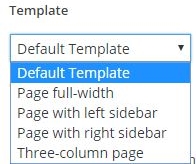
These are not “classic templates” because they are used only if the user emphasizes it in the admin page in the Page Attributes/Template field. These templates are made with the intention of being used for several different static pages that should have the same design.
According to the organization of files in WordPress, these files are stored in a folder called “page-templates”. There is no rule for naming these files. The names of the templates that appear to the user in the admin window are written inside the page template files as a comment at the very beginning. Therefore, the names of the page template files themselves have no significance except for simple file recognition. The comment with the page template name must look similar to the following example:
|
1 2 3 |
/** * Template Name: Page with left sidebar */ |
The programmer should not create these templates if they are used to display only a typical page (eg the contact page). In that case, create the “most specific” template for pages page-$slug.php (page-kontakt.php).
Parts of code – partials
In order to improve visibility and prevent code repetition, parts that appear within multiple templates have been separated. These files are subsequently included.
- header.php – contains parts of the theme such as navigation, logo and
image at the top of the thread - content.php – contains the code (loop) responsible for displaying the content
- sidebar.php – contains the structure of the sidebar used in the theme
- footer.php – contains the theme parts that are repeated in the theme footer
- comments.php – contains the structure of comments that are added to each article or
page where comments are enabled and may contain a form for sending a new comment
WordPress Hierarchy
A WordPress theme consists of multiple page templates. The templates are in a hierarchical relationship with each other, and the wordpress hierarchy is built into the software itself. For a better understanding of the WP Hierarchy see the image below or for a better view of the problem visit http://wphierarchy.com/
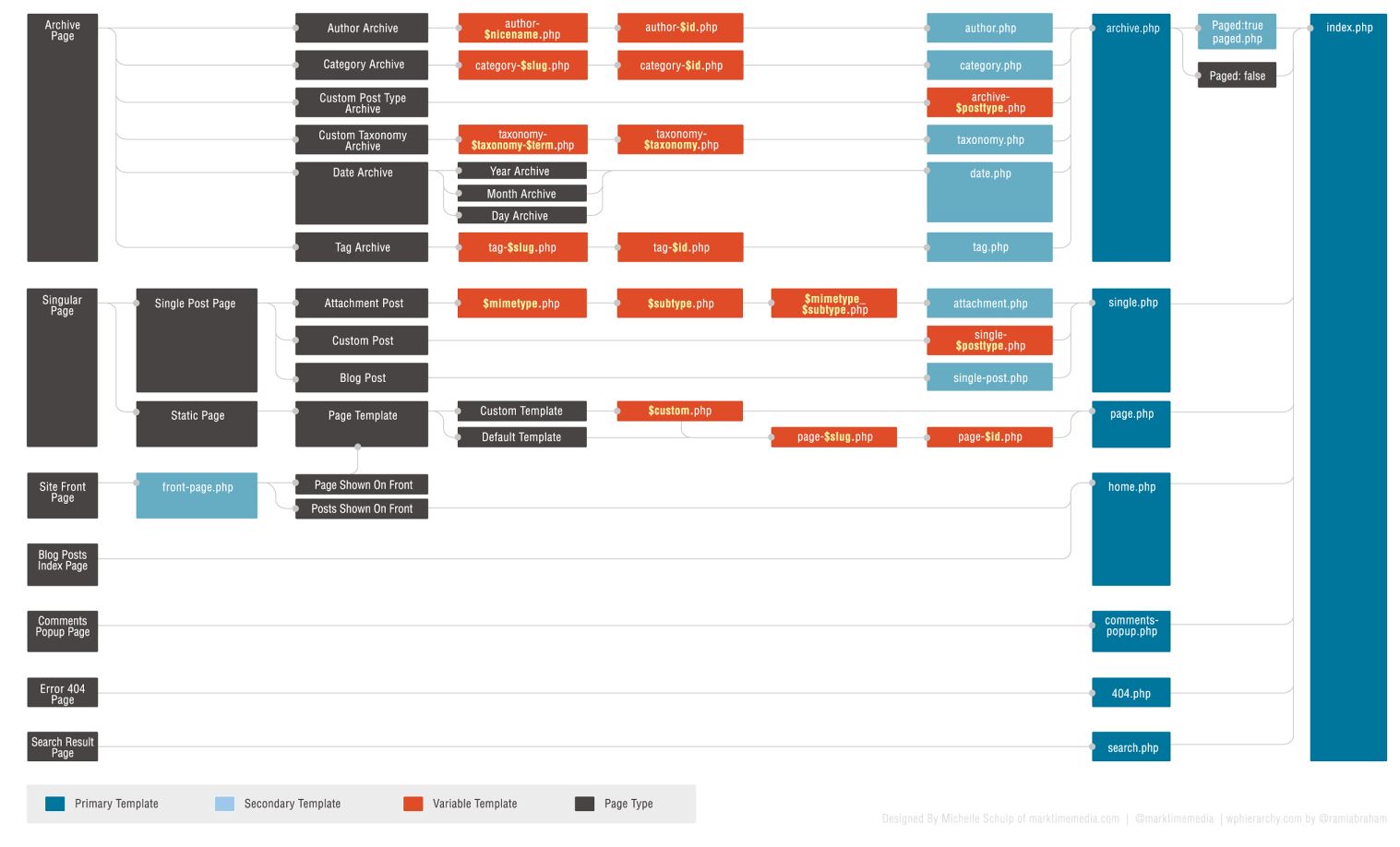
The essence of the hierarchy is based on the principle: “from specific to general”, i.e. when WordPress needs to load a page it will look for the most specific template, and if there is none then it will look for the first next less specific one and so on … until the most general theme index.php.
The software’s “thinking” process as it searches for a template to display an article is as follows:
- recognizes that this is a page that only displays the content of a single post or page
- recognizes that it is a page thatit only shows the content of one post
- views what type of article
- If the article is of type “post”, the folder after the file single-post.php is checked
- If one of the mentioned files is not found, the folder after the file single.php is checked.
- If there is no single.php, index.php
is used
but if the article is “Custom Post Type” then…
- the folder after the file single-auto.php is viewed (if our custom post type
was a car). - If one of the mentioned files is not found, the folder after the file single.php is checked.
- If there is no single.php, index.php
is used
or a slightly different example if it is an article of an attachment such as uploaded images:
- then browses folder by file
image.php if it is a file of type image, then if it does not exist it looks for
png.php if the image is in .png format, and after that it looks if there is
image_png.php file. If none of those files are there, it looks at attachment.php - If one of the mentioned files is not found, the folder after the file single.php is checked.
- If there is no single.php, index.php
is used
RECOMMENDATIONS:
- Use front-page.php template for main page – not page template or index.php
- Use category.php or tag.php or search.php templates instead of archive.php
- Use page-$slug templates – when you have a unique static page like contact (with embedded map), reference page (with image gallery)…
You can see more about this here.