


Introduction
Package manager is a tool responsible for automating processes related to working with packages. Software packages are located in archive files, and each package contains meta-data that describes the given software (such as the software name, version, and list of all dependencies).
The most common application of package manager is when installing packages and their dependencies. Package manager eliminates the need to manually install software. In addition, package manager can handle updating, configuring and finally removing all those components.
The biggest package manager is npm, which is primarily made for the node.js (server) environment, so in order for it to work in a browser, it is necessary to use module bundler (browserify or webpack). Yarn package manager is the “new kid in town”, Facebook’s baby, it can use all npm packages and has a very similar syntax but it is considered to execute commands faster than npm.
Dependency Organization
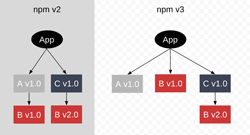
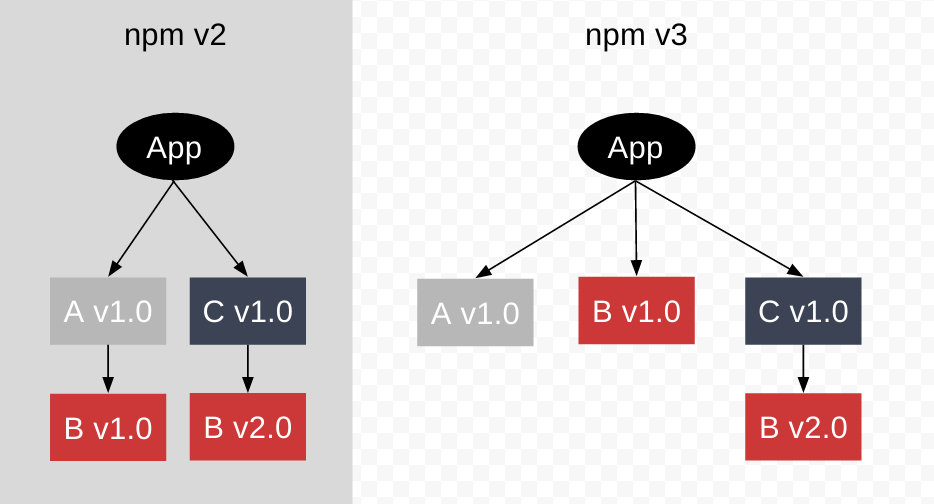
npm uses a nested dependency tree. Nested dependency tree implies that for each package its dependencies are installed, so that the same dependencies (eg Jquery) can be loaded multiple times but for different programs. This type of organization requires more space but allows applications to use different versions of the same software in one project.
It should be noted that the latest version of npm (npm3) tries to prevent “dependencies hell” and its style is more and more like “flat way”. See more about dependencies tree in npm3 on their site.
Example
|
1 2 3 4 5 6 7 8 9 10 11 12 |
project root [node_modules] // the main (root) directory for dependencies -> dependency A -> dependency B [node_modules] // direkteorijum za dependences aplikacije B -> dependency A -> dependency C [node_modules] -> dependency B [node_modules] -> dependency A -> dependency D |
Installation and initialization
Package manager installation
The npm package manager installation is part of the node.js installation. So first you need node.js with official page where we choose the appropriate version of Windows Installer (.msi) and then do the standard installation.
Since Yarn is used mainly for npm packages, we need to have node.js installed before installing Yarn itself. Yarn installation is standard, you need to download the installation .msi file from the official website. You can download the download link here, followed by the standard installation with next…next…next
Update package manager
Updating “npm” with command:
|
1 |
npm install -global npm |
Yarn update is done from npm
|
1 |
npm upgrade --global yarn |
Initialization of the package manager in the project
Once we have the application installed on our operating system then we can use it in our project. When initializing the package manager, a “package.json” file is generated with the command:
|
1 |
npm init |
|
1 |
yarn init |
Working with packages
Installing new packages
a) Global installation (operating system)
|
1 |
npm install -global nazivPaketa |
|
1 |
yarn global nazivPaketa |
NOTE:
Unlike npm where the “–globall” flag is used, yarn uses the command!
COMMAND “global” IS WRITTEN IMMEDIATELY AFTER “yarn”!!!
b) Local installation (inproject)
Package installation is done with the command:
|
1 |
npm install nazivPaketa [flag] |
Installation options:
| Flag | Purpose | Shortcut |
|---|---|---|
| –save | Adding packages to Dependencies | -S |
| –save-dev | Adding packages to devDependencies | -D |
| @1.2.3 | An extension pasted to the package name that defines the exact version of the package we want to install (if omitted it installs the latest version) | / |
|
1 |
yarn add nazivPaketa |
Installation Options
| Flag | Purpose | Shortcut |
|---|---|---|
| –dev | Adding packages to devDependencies | -D |
| @1.2.3 | An extension pasted to the package name that defines the exact version of the package we want to install (if omitted it installs the latest version) | / |
Installing all packages from package.json
When a project is cloned, it does not come with installed packages, but only with instructions on what to install (package.json). Installation of all dependencies defined in the package.json file is done with:
|
1 |
npm install |
or
|
1 |
npm i |
|
1 |
yarn install |
or simply
|
1 |
yarn |
Update dependencies
Individual package updates
With the command to update the installed package, we need to use the appropriate flag that was used during installation:
|
1 |
npm update nazivPaketa [opcioni flag] |
|
1 2 3 |
yarn upgrade nazivPaketa yarn upgrade nazivPaketa@[version] yarn upgrade nazivPaketa@[tag] |
Reinstall all packages
|
1 |
rm -rf node_modules && npm install |
|
1 |
yarn upgrade |
Removing dependencies
With the command to remove the installed package, we need to use the appropriate flag that was used during installation:
|
1 |
npm uninstall nazivPaketa [opcioni flag npr. --save-dev] |
With yarn, it is not necessary to use the flag when uninstalling:
|
1 |
yarn remove nazivPaketa |
Starting the package
The corresponding package is started with the command:
|
1 |
npm run nazivPaketa |
|
1 |
yarn run nazivPaketa |
Tips & tricks
Using Git repositories instead of npm Modules
If we don’t want to use the official site but some private repository, we can use the following code in package.json:
|
1 2 3 4 5 |
{ "dependencies": { "angular-ui-codemirror": "git+ssh://git@github.com:jpetitcolas/ui-codemirror.git#di" } } |
Deleting undeclared modules
If we ever forget to use --save or --save-dev when installing a package, use the command “prune” to delete such packages:
|
1 |
npm prune |
or in production you need to add –production:
|
1 |
npm prune --production |
This command deletes all packages that are not in the “package.json” file.
Defining package version
With adequate signs we can more accurately define the package version:
- (^) targets all major versions eg. (1.*.*)
- (~) targets the latest minor version, e.g. (1.2.*)
- Exact version of e.g. (1.2.3)
Fixing package version
If we want to fix the version “forever” during the installation, it is enough to use:
|
1 |
npm install --save --save-exact nazivPaketa |
Overview of outdated versions
|
1 |
npm outdated |
This command lists the version status for each package at a glance:
|
1 2 3 4 5 |
Package Current Wanted Latest Location babel-cli 6.14.0 6.16.0 6.18.0 admin-on-rest babel-core MISSING 6.17.0 6.18.2 admin-on-rest babel-eslint 6.1.2 7.0.0 7.1.0 admin-on-rest babel-preset-es2015 6.14.0 6.16.0 6.18.0 admin-on-rest |