


Introduction to code tracking systems
There are two types of version tracking and control systems:
-
Centralized Version Control System (CVCS)
This is where tools like SVN, Perforce and CVS belong. With the CVC system, all version data is located on the central server, while users only have access to the current version they are working on. This principle of operation enables easier maintenance and administration, but data security is problematic if the system fails, all information is lost.
-
Decentralized Version Control System (DVCS)
to which belong: Mercurial, Bazaar, Darcs and Git. With the DVC system, in addition to the latest version, users also download a complete database of all versions in that repository. In case of system failure, it is sufficient for only one of the clients to upload data to the server.
Git as a representative of DVCS

With Git as a representative of DVCS, when cloning a repository, the entire database of the project at that moment is copied. After that we can use locally all versions of the files created up to the moment of cloning. Since all data is located locally, the response is much faster than if the data is located on a remote server.
The principle of data storage with Git is based on saving the entire state of the system, at that moment the so-called snapshot of each project file. If a file has not been changed, then a pointer to its previous state is stored. The space occupied by a project that is on Git is much smaller than that same project on SVN.
Basic concepts in working with Git
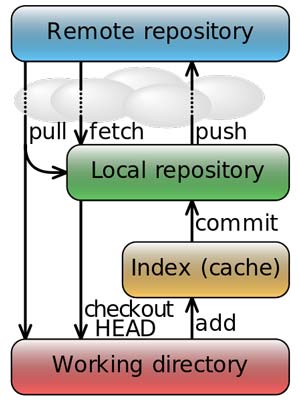
- Working directory (eng. Working directory) Represents a local folder where we change and create files that are included in versioning
- Preparation area (Eng. staging area) or so-called Index. All files must be prepared before they are committed. The place where they are accommodated is this preparatory part. Only those files located here will be committed. Since Git takes a snapshot of all files during a commit, the existence of a preparatory part is quite logical because we will place the files here first, and that way the system will not have to take a snapshot whenever we have a file ready.
- “Commit” (eng. commit) is a command with which we take a snapshot of changes in the state of files compared to the previous state. It is important to note here that in git we never commit to a remote repository, but save to a local repository on our computer.
- Repository ie. A warehouse (Repository or Repo for short) is a space where the so-called “snapshots” of file states during commit (eng. commit). All metadata and database about our project are located here. When someone downloads (clone) the project, this directory is copied to them.
- “Cloning” is copying a remote repository, but so that a new one(local) repository remains “aware” that it is a copy of some remote repository
- “Push” is the command with which we send our changes in the local repository back to the original location (usually GitHub). To use this command, we need to have authorization.
- If we do not have the authority to send changes to the remote repository, we use the command “Pull request”. This command is nothing more than a short message to the owner of a remote repository that we have changes that he could download to his repository. This “message” contains a description of the changes we made and the address of our repository.
- “Branche” – project branch
- “Bare git repository” is a repository that does not have a working version of the project (no working directory), i.e. it only contains the .git directory. Such a repository is usually located on a server, and it is not committed to, but pushed from local repositories…
- “Non-Bare git repository” is a repository that contains both a .git directory and a working tree
- “HEAD” is an imaginary pointer to the current commit within git. It’s usually the last commit in the branch we’re in, although it can be any other. If the pointer points to a commit that is not the last in the branch, then the repository is said to be in “detached HEAD” state.
- GitHub service is a service for storing and sharing Git repositories on the Internet. It offers the same control and management as Git stim that adds its own functionalities. Unlike Git which is mainly based on working with the command line GitHub provides working with
Web-based graphic interface, but also work with the desktop application “GitHub Desktop”. To activate the GitHub service, it is enough to create an account on the GitHub site
The
Installation
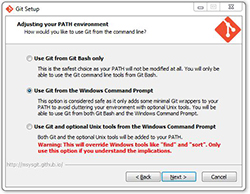
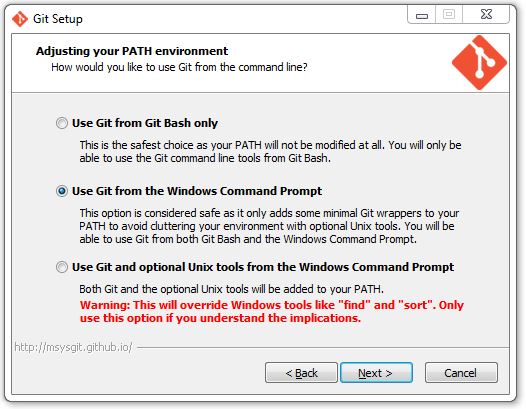
- Download the windows version from official site. The installation is standard, you only need to pay attention to check the option “Use Git from the Windows Command Prompt”
- Installation control with the command in the command prompt:
git -v
- Configuring name:
git config --global user.name NEKO IME
- Configuring email address:
git config --global user.email TVOJA@ADRESA
“GitHub Desktop” installation
Download GitHub Desktop for windows from the official site. After the standard installation is completed, the login form for logging in to the GitHub account opens. After that, the application is ready to use.