


Introduction
WordPress custom post type is any type that is not one of the 5 default post types:
- Post (Post Type: ‘post’)
- Page (Post Type: ‘page’)
- Attachment (Post Type: ‘attachment’)
- Revision (Post Type: ‘revision’)
- Navigation menu (Post Type: ‘nav_menu_item’)
In order to create a new wordpress type, we need to create a custom function that will activate an option in the admin panel with our specific requirements. The entire custom function is essentially based on the register_post_type() function.
Function register_post_type()
|
1 |
register_post_type( $post_type, $args ) |
$post_type
is the name used by wordpress so called machine name, must not contain capital letters or spaces
$args is an array of arguments that define the new post type.
Some frequently used arguments are:
- label is the name (plural) that appears on the admin page ready for translation
- labels is an array of labels used in that type of custom post
- ‘name’ – general name for the post type, usually plural. The same as, and overridden by $post_type_object->label
- ‘singular_name’ – name for one object of this post type. Defaults to value of ‘name’.
- ‘menu_name’ – the menu name text. This string is the name to give menu items. Defaults to a value of ‘name’.
- ‘name_admin_bar’ – name given for the “Add New” dropdown on the admin bar. Defaults to ‘singular_name’ if it exists, ‘name’ otherwise.
- ‘all_items’ – the all items text used in the menu. Default is the value of ‘name’.
- ‘add_new’ – the add new text. The default is “Add New” for both hierarchical and non-hierarchical post types. When internationalizing this string, please use a gettext context matching your post type. Example: _x('Add New', 'product');
- ‘add_new_item’ – the add new item text. Default is Add New Post/Add New Page
- ‘edit_item’ – the edit item text. In the UI, this label is used as the main header on the post’s editing panel. The default is “Edit Post” for non-hierarchical and “Edit Page” for hierarchical post types.
- ‘new_item’ – the new item text. Default is “New Post” for non-hierarchical and “New Page” for hierarchical post types.
- ‘view_item’ – the view item text. Default is View Post/View Page
- ‘search_items’ – the search items text. Default is Search Posts/Search Pages
- ‘not_found’ – the not found text. Default is No posts found/No pages found
- ‘not_found_in_trash’ – the not found in trash text. Default is No posts found in Trash/No pages found in Trash.
- ‘parent_item_colon’ – the parent text. This string is used only in hierarchical post types. Default is “Parent Page”.
- description description
- public is an option that controls visibility to site authors and readers, and directly affects other parameters exclude_from_search, publicly_queryable, show_in_nav_menus, and show_ui because it gives their default value.
It is a boolean value so it can be:- ‘true’ The built-in types attachment, page, and post are similar to this.
- ‘false’ The built-in types nav_menu_item and revision are similar to this. Best used if you’ll provide your own editing and viewing interfaces (or none at all).
- menu_position
- 5 – below Posts
- 10 – below Media
- 15 – below Links
- 20 – below Pages
- 25 – below comments
- 60 – below first separator
- 65 – below Plugins
- 70 – below Users
- 75 – below Tools
- 80 – below Settings
- 100 – below second separator
- menu_icon can be:
- url to icon e.g. ‘get_template_directory_uri().”/images/cutom-posttype-icon.png”‘
- icon name from iconfont e.g. ‘dashicons-video-alt’
- supports is a boolean string
- ‘title’
- ‘editor’ (content)
- ‘author’
- ‘thumbnail’ (featured image, current theme must also support post-thumbnails)
- ‘excerpt’
- ‘trackbacks’
- ‘custom-fields’
- ‘comments’ (also will see comment count balloon on edit screen)
- ‘revisions’ (will store revisions)
- ‘page-attributes’ (menu order, hierarchical must be true to show Parent option)
- ‘post-formats’ add post formats
Make sure theme level feature support is provided before doing custom post type level support!
- has_archive is a boolean value that activates post type archives, so $post_type will be used as the archive slug by default.
Custom post type through examples
Basic ease of use:
|
1 2 3 4 5 6 7 8 |
function codex_custom_init() { $args = array( 'public' => true, 'label' => 'Books' ); register_post_type( 'book', $args ); } add_action( 'init', 'codex_custom_init' ); |
or a complete example:
|
1 2 3 4 5 6 7 8 9 10 11 12 13 14 15 16 17 18 19 20 21 22 23 24 25 26 27 28 29 30 31 32 33 34 35 36 |
function codex_book_init() { $labels = array( 'name' => _x( 'Books', 'post type general name', 'your-plugin-textdomain' ), 'singular_name' => _x( 'Book', 'post type singular name', 'your-plugin-textdomain' ), 'menu_name' => _x( 'Books', 'admin menu', 'your-plugin-textdomain' ), 'name_admin_bar' => _x( 'Book', 'add new on admin bar', 'your-plugin-textdomain' ), 'add_new' => _x( 'Add New', 'book', 'your-plugin-textdomain' ), 'add_new_item' => __( 'Add New Book', 'your-plugin-textdomain' ), 'new_item' => __( 'New Book', 'your-plugin-textdomain' ), 'edit_item' => __( 'Edit Book', 'your-plugin-textdomain' ), 'view_item' => __( 'View Book', 'your-plugin-textdomain' ), 'all_items' => __( 'All Books', 'your-plugin-textdomain' ), 'search_items' => __( 'Search Books', 'your-plugin-textdomain' ), 'parent_item_colon' => __( 'Parent Books:', 'your-plugin-textdomain' ), 'not_found' => __( 'No books found.', 'your-plugin-textdomain' ), 'not_found_in_trash' => __( 'No books found in Trash.', 'your-plugin-textdomain' ) ); $args = array( 'labels' => $labels, 'description' => __( 'Description.', 'your-plugin-textdomain' ), 'public' => true, 'publicly_queryable' => true, 'show_ui' => true, 'show_in_menu' => true, 'query_var' => true, 'rewrite' => array( 'slug' => 'book' ), 'capability_type' => 'post', 'has_archive' => true, 'hierarchical' => false, 'menu_position' => null, 'supports' => array( 'title', 'editor', 'author', 'thumbnail', 'excerpt', 'comments' ) ); register_post_type( 'book', $args ); } add_action( 'init', 'codex_book_init' ); |
NOTE:
If a 404 error appears after registering a post type, it is necessary to Save Changes in Settings/Permalinks.
Text adaptation in the admin interface
Changing the default messages that wordpress triggers after some user actions can be easily changed using post_updated_message hooks as in the following example.
|
1 2 3 4 5 6 7 8 9 10 11 12 13 14 15 16 17 18 19 20 21 22 23 24 25 26 27 28 29 |
function rw_post_updated_messages( $messages ) { $post = get_post(); $post_type = get_post_type( $post ); $post_type_object = get_post_type_object( $post_type ); $messages['my-post-type'] = array( 0 => '', // Unused. Messages start at index 1. 1 => __( 'My Post Type updated.' ), 2 => __( 'Custom field updated.' ), 3 => __( 'Custom field deleted.'), 4 => __( 'My Post Type updated.' ), /* translators: %s: date and time of the revision */ 5 => isset( $_GET['revision'] ) ? sprintf( __( 'My Post Type restored to revision from %s' ), wp_post_revision_title( (int) $_GET['revision'], false ) ) : false, 6 => __( 'My Post Type published.' ), 7 => __( 'My Post Type saved.' ), 8 => __( 'My Post Type submitted.' ), 9 => sprintf( __( 'My Post Type scheduled for: <strong>%1$s</strong>.' ), // translators: Publish box date format, see http://php.net/date date_i18n( __( 'M j, Y @ G:i' ), strtotime( $post->post_date ) ) ), 10 => __( 'My Post Type draft updated.' ) ); //return the new messaging return $messages; } add_filter( 'post_updated_messages', 'rw_post_updated_messages' ); |
Or similar:
|
1 2 3 4 5 6 7 8 9 10 11 12 13 14 15 16 17 18 |
function my_updated_messages( $messages ) { global $post, $post_ID; $messages['product'] = array( 0 => '', 1 => sprintf( __('Product updated. View product'), esc_url( get_permalink($post_ID) ) ), 2 => __('Custom field updated.'), 3 => __('Custom field deleted.'), 4 => __('Product updated.'), 5 => isset($_GET['revision']) ? sprintf( __('Product restored to revision from %s'), wp_post_revision_title( (int) $_GET['revision'], false ) ) : false, 6 => sprintf( __('Product published. View product'), esc_url( get_permalink($post_ID) ) ), 7 => __('Product saved.'), 8 => sprintf( __('Product submitted. Preview product'), esc_url( add_query_arg( 'preview', 'true', get_permalink($post_ID) ) ) ), 9 => sprintf( __('Product scheduled for: <strong>%1$s</strong>. Preview product'), date_i18n( __( 'M j, Y @ G:i' ), strtotime( $post->post_date ) ), esc_url( get_permalink($post_ID) ) ), 10 => sprintf( __('Product draft updated. Preview product'), esc_url( add_query_arg( 'preview', 'true', get_permalink($post_ID) ) ) ), ); return $messages; } add_filter( 'post_updated_messages', 'my_updated_messages' ); |
Help text for explanations
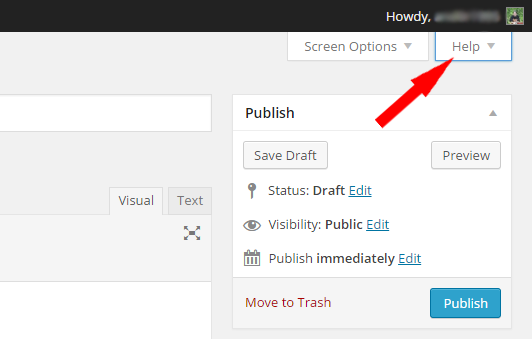
To facilitate the use of custom post types, a help tab can be created that would appear in the admin page in two “places”
- when we review the list with all custom post types
- when we edit a custom post type
This kind of help menu is obtained by embedding a custom function in functions.php, which is activated with the action hook contextual_help. The following example shows the code for the help menu on the admin page for custom post type movie:
|
1 2 3 4 5 6 7 8 9 10 11 12 |
function my_contextual_help( $contextual_help, $screen_id, $screen ) { if ( 'movie' == $screen->id ) { $contextual_help = '<h2>Podaci o filmu</h2> <p>Ubacite naslov filma i sadrzaj.</p>'; } elseif ( 'edit-'movie'' == $screen->id ) { $contextual_help = '<h2>View a list of all your movies</h2> <p>In this section you can edit all movies at once!</p>'; } return $contextual_help; } add_action( 'contextual_help', 'my_contextual_help', 10, 3 ); |
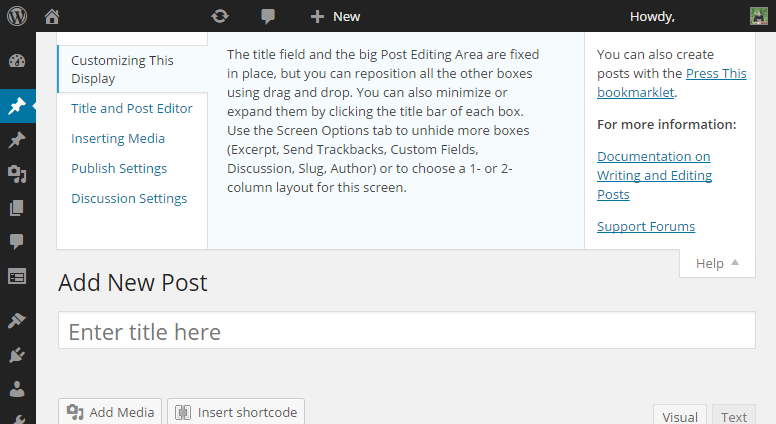
In the previous example, the help tab with its help text will appear on two different occasions and will contain different accompanying texts. While we are in the Admin page and when:
- we review all posts of this type
(the part in the code when ‘movie’ == $screen->id was used) - edit individual post
(the part in the code when ‘edit-‘movie” == $screen->id was used)
If we want to have more tabs and we want it to be saved for translation, we will use the code as in the following example:
|
1 2 3 4 5 6 7 8 9 10 11 12 13 14 15 16 17 18 19 20 21 22 23 24 25 26 27 28 29 30 31 32 33 34 35 36 37 38 39 |
function my_contextual_help2( $contextual_help, $screen_id, $screen ) { if ( 'movie' == $screen->id ) { $screen->add_help_tab( array( 'id' => 'tab1', 'title' => __('Prvi help tab'), 'content' => '<div>' . __('<h2>Kako popuniti sadrzaj?</h2> <p>Ubacite naslov filma i sadrzaj.</p> ') . '</div>', )); $screen->add_help_tab( array( 'id' => 'tab2', 'title' => __('Drugi help tab'), 'content' => '<div>' . __( '<p>Pellentesque habitant morbi tristique senectus.</p>' ) . '</div>', )); $screen->add_help_tab( array( 'id' => 'tab3', 'title' => __('Treci help tab'), 'content' => '<div>' . __( '<p>Pellentesque habitant morbi tristique senectus.</p>' ) . '</div>', )); } elseif ( 'edit-movie' == $screen->id ) { $screen->add_help_tab( array( 'id' => 'tab1', 'title' => __('Prvi help tab'), 'content' => '<div>' . __(' <h2>Kako dodati novi film?</h2> <p>Kliknite na dugme "Dodaj Film"</p> ') .'</div>', )); } } add_action( 'contextual_help', 'my_contextual_help2', 10, 3 ); |
Custom Post Type Templates
Showing one member
The template single.php is used to display a single member of a special type, but if there is a need to display it differently than a regular single post, we must create a special template with the name single-TypeName.php.
List display
By default, the standard template archive.php is used to display the list of special types, and if we want it to be more specific, then we use the template called archive-NameTipa.php
NOTE:
In order to create a menu-link in the navigation that opens a list with all posts of the custom type type, we will use the custom link option, where we will put http://domen.com/NazivCustomPostType as the URL.
Explanation with examples
If, for example, custom post type “films”, it follows that when we want to display a single film (eg “Terminator”) WP will use the single-filmovi.php template, but if we want to display all films entered through the custom post type, the archive-filmovi.php template is used.
Displaying Custom post type
Displaying together with standard posts
One of the advantages of custom post types is that they are separated from “ordinary” posts ie. they are displayed on the blog page along with “regular” posts. But if we still want to combine them, we have to use the following code:
|
1 2 3 4 5 6 |
function add_my_post_types_to_query( $query ) { if ( is_home() && $query->is_main_query() ) $query->set( 'post_type', array( 'post', 'movie' ) ); return $query; } add_action( 'pre_get_posts', 'add_my_post_types_to_query' ); |
The previous code uses the action hook pre_get_posts which is called after the creation of the $query object but before it is started in the loop. Therefore, at the moment our hook works, the code will be activated that adds a new custom post type “movie” to the $query object along with the standard posts.
Appearance in some template
If we want to display a list of our custom post type inwithin a template, then custom loop:
is used
|
1 2 3 4 5 6 7 8 9 10 11 12 13 14 15 |
<?php $args = array( 'post_type' => 'movies', 'posts_per_page' => 10 ); $the_query = new WP_Query( $args ); ?> <?php if ( $the_query->have_posts() ) : ?> <?php while ( $the_query->have_posts() ) : $the_query->the_post(); ?> <h2><?php the_title(); ?></h2> <div class="entry-content"> <?php the_content(); ?> </div> <?php endwhile?> <?php wp_reset_postdata(); ?> <?php else: ?> <p><?php _e( 'Sorry, no posts matched your criteria.' ); ?></p> <?php endif; ?> |
Displaying in the widget area
In order to display a list of recent custom post types, we will use the “Ultimate Post Widget” plugin, which after activation and placing it as a widget in the sidebar allows you to see recent posts of any type.